

Creators API Setup
This guide explains how to set up the Amazon Creators API in ASA2.
Prerequisites
Before you begin, make sure you have:
- PHP 8.1 or higher installed on your server
- An Amazon Associates account for the marketplace(s) you want to use
- Access to Amazon Associates Central to create API credentials
Step 1: Create Credentials at Amazon
To use the Creators API, you need to create API credentials at Amazon Associates Central.
- Log in to your Amazon Associates account
- Navigate to the Creators API section (also called "Product API" in some regions)
- Create new credentials for your marketplace
- Copy the Credential ID and Credential Secret
For detailed instructions, see Amazon's official guide: Register for Creators API
INFO
Each Amazon marketplace requires separate credentials. For example, if you want to use products from both amazon.de and amazon.com, you need to create credentials in both the German and US Associates programs.
Links to Amazon Associates Central by country:
- Germany: https://partnernet.amazon.de
- United States: https://affiliate-program.amazon.com
- United Kingdom: https://affiliate-program.amazon.co.uk
- France: https://partenaires.amazon.fr
- Italy: https://programma-affiliazione.amazon.it
- Spain: https://afiliados.amazon.es
For a complete list of all supported countries, see Supported Country Stores.
Step 2: Open Creators API Setup in ASA2
In your WordPress admin, navigate to ASA2 → Setup and click on the Amazon Creators API tab.

The Setup page opens on the Amazon Creators API tab. The other tabs are Amazon PA API (marked Deprecated), Without API and Associate ID Sets (PA API).
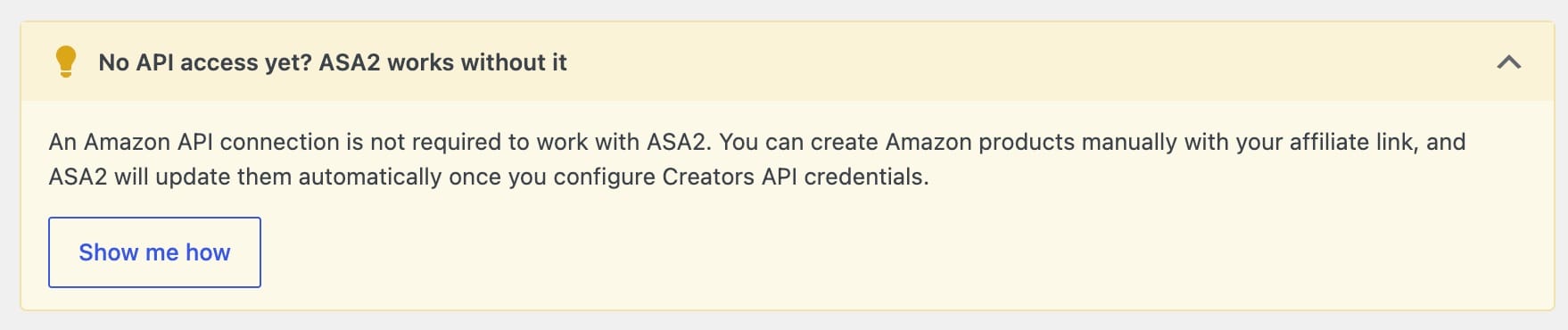
Below the introduction you will find a collapsed hint, "No API access yet? ASA2 works without it". Expand it to read that an Amazon API connection is not required to work with ASA2, and click Show me how to jump to the Without API tab.
TIP
You can create Amazon products manually with your affiliate link and ASA2 updates them automatically as soon as you configure Creators API credentials. See Setup → Without API.
Step 3: Add Marketplace Credentials
Click the "+ Add Marketplace" button to add credentials for a marketplace.
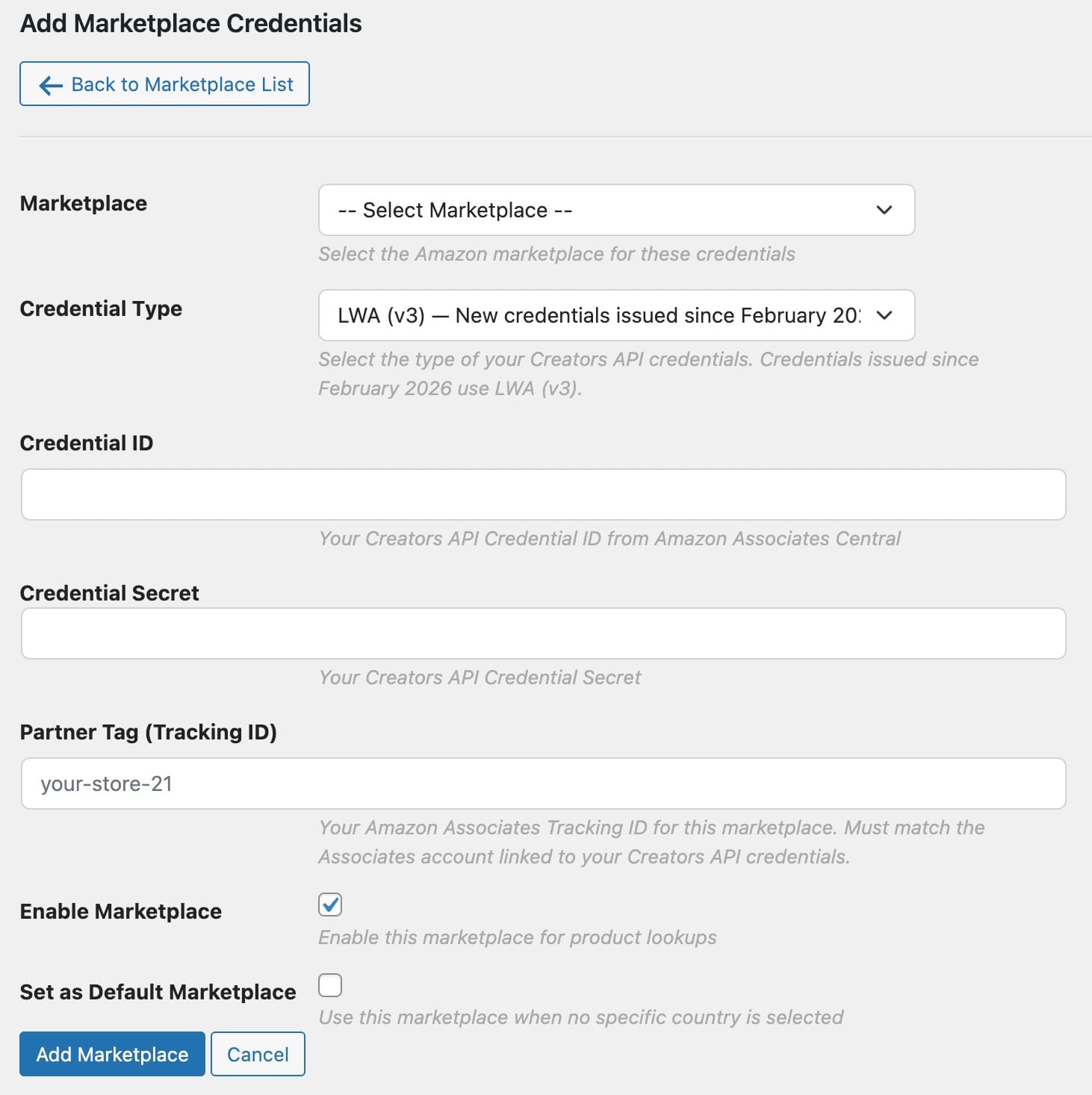
Fill in the following fields:
Marketplace Select the Amazon marketplace (country) for these credentials.
Credential Type Select the type of your Creators API credentials.
- Cognito (v2): Choose this for credentials you created before February 2026. These are the original Creators API credentials that use Amazon Cognito for authentication.
- LWA (v3): Choose this for credentials issued since February 2026. These newer credentials use Login with Amazon (LWA) for authentication.
The API version is automatically determined based on your credential type and marketplace. Cognito credentials use API versions 2.1–2.3, while LWA credentials use API versions 3.1–3.3. You do not need to select the API version manually.
Credential ID Your Creators API Credential ID from Amazon Associates Central.
Credential Secret Your Creators API Credential Secret. This will be stored encrypted in the database.
Partner Tag (Tracking ID) Your Amazon Associates Tracking ID for this marketplace. This must match the Associates account linked to your Creators API credentials.
Enable Marketplace Check this to enable the marketplace for product lookups. You can temporarily disable a marketplace without deleting the credentials.
Set as Default Marketplace Check this if you want this marketplace to be used when no specific country is selected.
Click "Add Marketplace" to save the credentials.
Troubleshooting
If you receive an "invalid_client" error after entering your credentials, your credentials may be LWA (v3) type. Try editing the marketplace and switching the Credential Type to "LWA (v3)". See also invalid_client Error in the migration guide.
Step 4: Verify Configuration
After adding credentials, you'll see the marketplace in the Configured Marketplaces table:
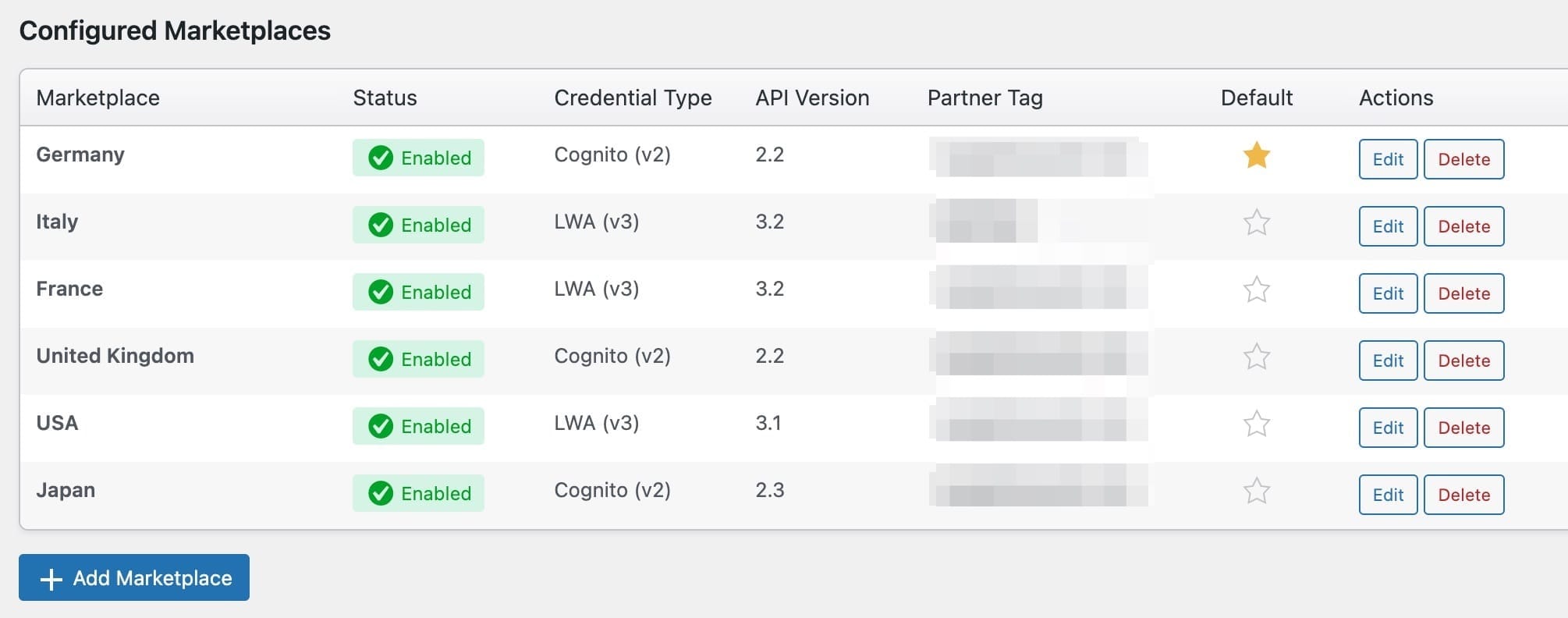
The table shows:
- Marketplace: The country name
- Status: Whether the marketplace is enabled or disabled
- Credential Type: Whether this marketplace uses Cognito (v2) or LWA (v3) credentials
- API Version: The Creators API version being used (2.x for Cognito, 3.x for LWA)
- Partner Tag: Your tracking ID (partially hidden for security)
- Default: A star indicates the default marketplace
- Actions: Edit or delete the configuration
Step 5: Test the Connection
To verify that your Creators API credentials are working:
- Go to ASA2 → Products
- Add a new product or refresh an existing one
- Check that product data loads correctly
If the Creators API is working, ASA2 will automatically use it for product lookups. You can verify this in the product data or by enabling Options Logging.
Credentials Are Per Marketplace
Credentials apply to exactly one Amazon marketplace. ASA2 can only load products from marketplaces you have configured and enabled here.
For a product from a marketplace without credentials, ASA2 does not send a request at all. Instead it shows a message naming that marketplace — here in the Product Picker:
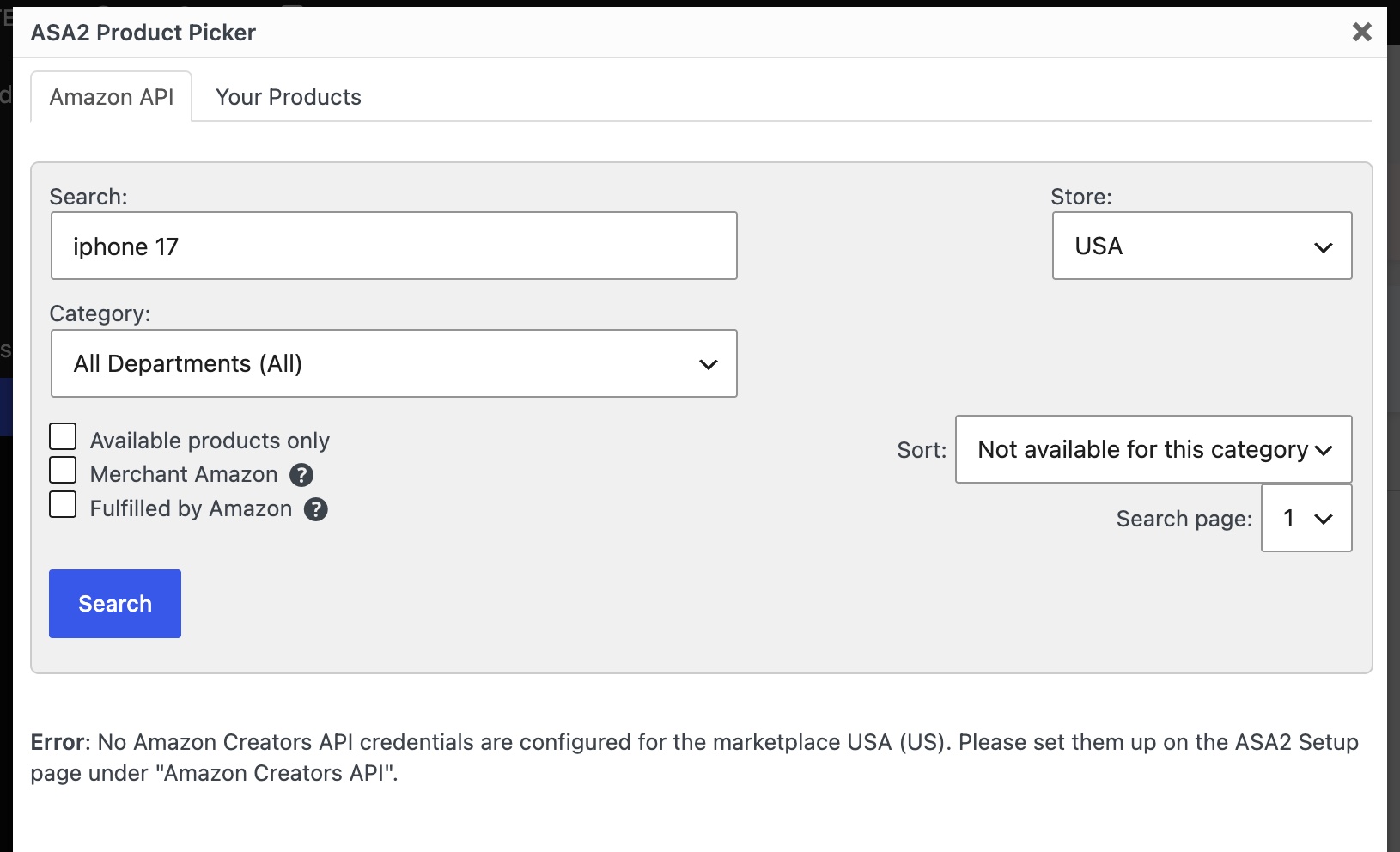
If the credentials exist but the marketplace is switched off, the message asks you to enable it instead. Depending on where the message appears, ASA2 adds a link below it that opens this setup page directly.
Add marketplaces one at a time as you need them — see Creators Api Multi Marketplace.
INFO
The Amazon PA API tab is marked Deprecated. Amazon has retired that API, so stored PA API credentials do not cover marketplaces that are missing here.
Next Steps
- Creators Api Multi Marketplace - Learn how to configure multiple marketplaces
- Creators Api Migration - Migrating from PA API 5.0
- Placeholders Availability - New placeholders available with Creators API