

Providers
The Providers page lets you configure each tracking provider independently. You can enable multiple providers simultaneously — for example, Built-in Tracking for your analytics dashboard and GA4 for deeper analysis in Google Analytics.
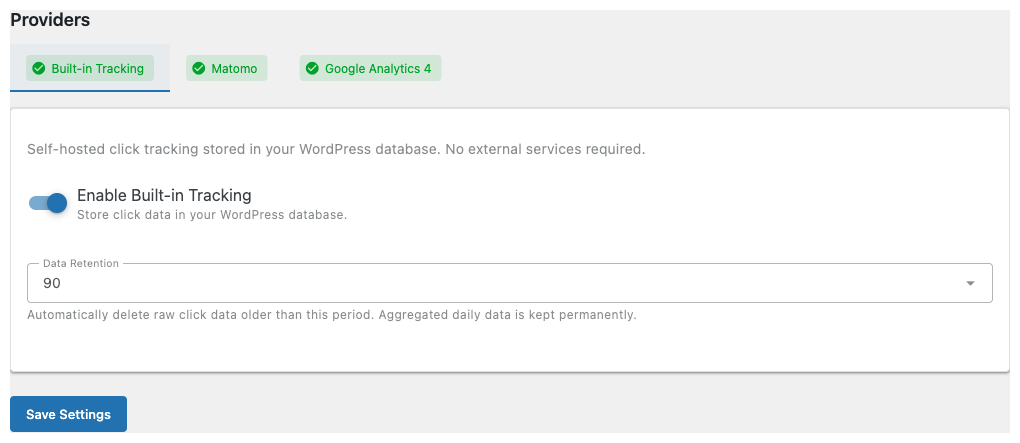
Built-in Tracking
The built-in provider stores all click data in your WordPress database. It powers the Dashboard, Analytics page, and all charts. No external services or accounts are needed.
In addition to click counts, the built-in provider automatically detects:
- Device type (desktop, mobile, tablet) from the User-Agent header
- Browser (Chrome, Firefox, Safari, Edge, etc.) from the User-Agent header
This data is collected anonymously — no cookies, no fingerprinting, only coarse-grained categories.
Settings
| Setting | Description |
|---|---|
| Enable Built-in Tracking | Turn tracking on or off. Enabled by default. |
| Data Retention | How long raw click records are kept. Options: 30 days, 90 days (default), 180 days, 1 year, or Unlimited. Aggregated daily summaries are kept permanently regardless of this setting. |
Best for: Users who want simple, privacy-friendly tracking without relying on external services.
Matomo
WARNING
Matomo is an external service. Make sure to update your cookie consent mechanism and privacy policy accordingly. See Privacy and Legal Considerations for details.
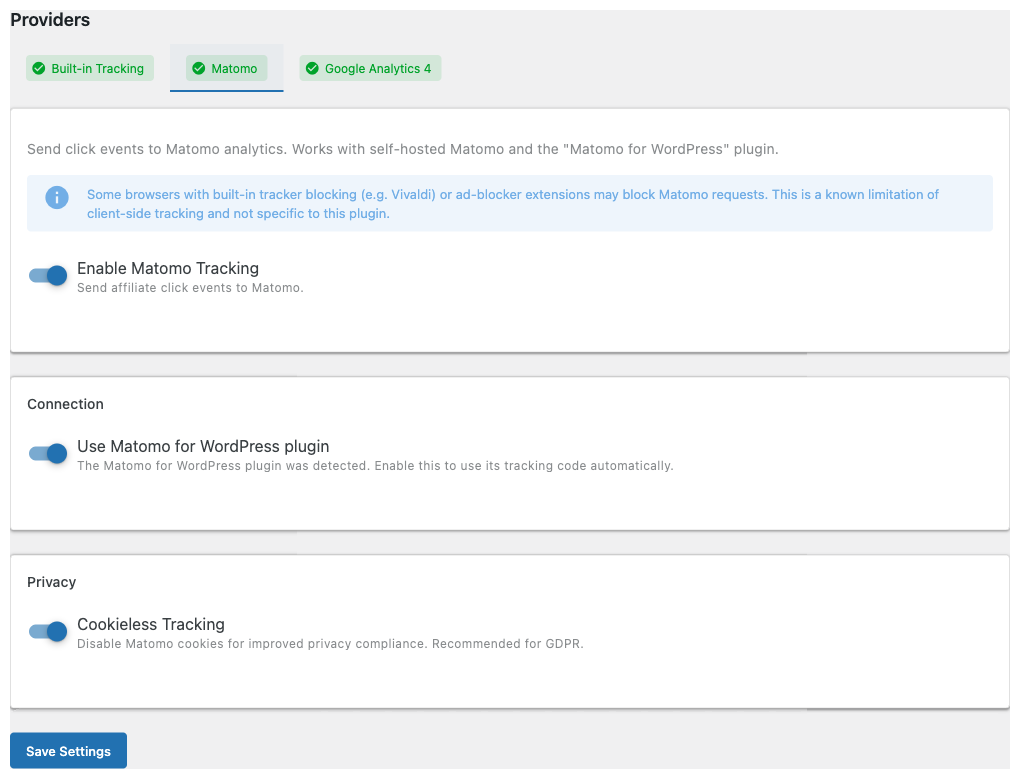
The Matomo provider sends affiliate click events to your Matomo analytics instance. Events are sent client-side using Matomo's JavaScript API (_paq.push()).
There are two ways to configure the Matomo provider:
Option 1: Automatic (recommended)
If you have the Matomo for WordPress plugin installed and active, ASA2 Tracking detects it automatically. Simply:
- Go to Providers → Matomo tab.
- Enable Enable Matomo Tracking.
- The Use Matomo for WordPress plugin toggle appears automatically when the plugin is detected — leave it enabled.
- Click Save Settings.
Option 2: Manual configuration
If you use a self-hosted Matomo instance (not the WordPress plugin):
- Go to Providers → Matomo tab.
- Enable Enable Matomo Tracking.
- Enter your Matomo URL (e.g.,
https://analytics.example.com). - Enter your Site ID (found in Matomo under Administration → Websites → Manage).
- Click Save Settings.
Privacy Settings
- Cookieless Tracking — Disables Matomo cookies for improved privacy compliance. Recommended if you need GDPR compliance without a cookie consent banner for analytics. Enabled by default.
Where to Find Events in Matomo
Affiliate click events appear in Matomo under:
Behaviour → Events
- Category:
Affiliate - Action:
Click - Name: The product ASIN or Product ID (or the destination URL if neither is available)
Ad-blocker limitations
Some browsers with built-in tracker blocking (e.g., Vivaldi) or ad-blocker extensions may block requests to Matomo. This is a known limitation of client-side tracking in general, not specific to this plugin.
Google Analytics 4
WARNING
Google Analytics 4 is an external service. Make sure to update your cookie consent mechanism and privacy policy accordingly. See Privacy and Legal Considerations for details.
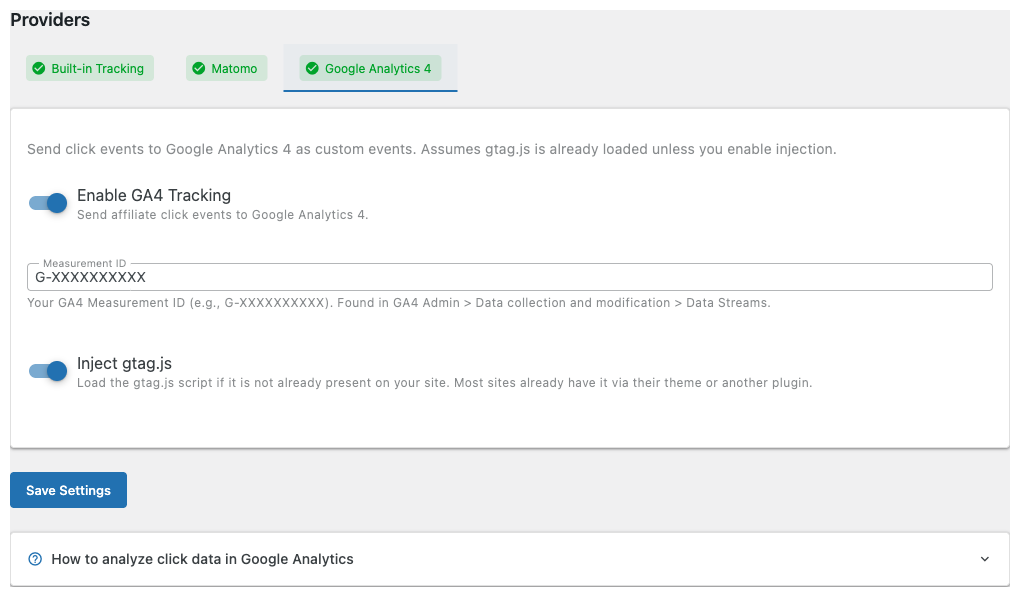
The GA4 provider sends affiliate click events to Google Analytics 4 using the gtag() JavaScript API.
Requirements:
- A GA4 property with a web data stream.
- gtag.js must be loaded on your site (most themes and SEO plugins already do this).
Settings
| Setting | Description |
|---|---|
| Enable GA4 Tracking | Turn GA4 event tracking on or off. |
| Measurement ID | Your GA4 Measurement ID in the format G-XXXXXXXXXX. Found in GA4 Admin → Data collection and modification → Data Streams → select your stream → Measurement ID. |
| Inject gtag.js | Load the gtag.js script if it is not already present on your site. Only enable this if no other plugin or theme loads gtag.js. Most sites do not need this. |
Setting Up Custom Dimensions in GA4
To see click details (product, template, click element) in GA4, you need to register custom dimensions. Without this step, GA4 collects the event parameters but you cannot use them in reports.
An inline setup guide is available directly in the GA4 provider tab — expand "How to analyze click data in Google Analytics" for step-by-step instructions.
Step-by-step:
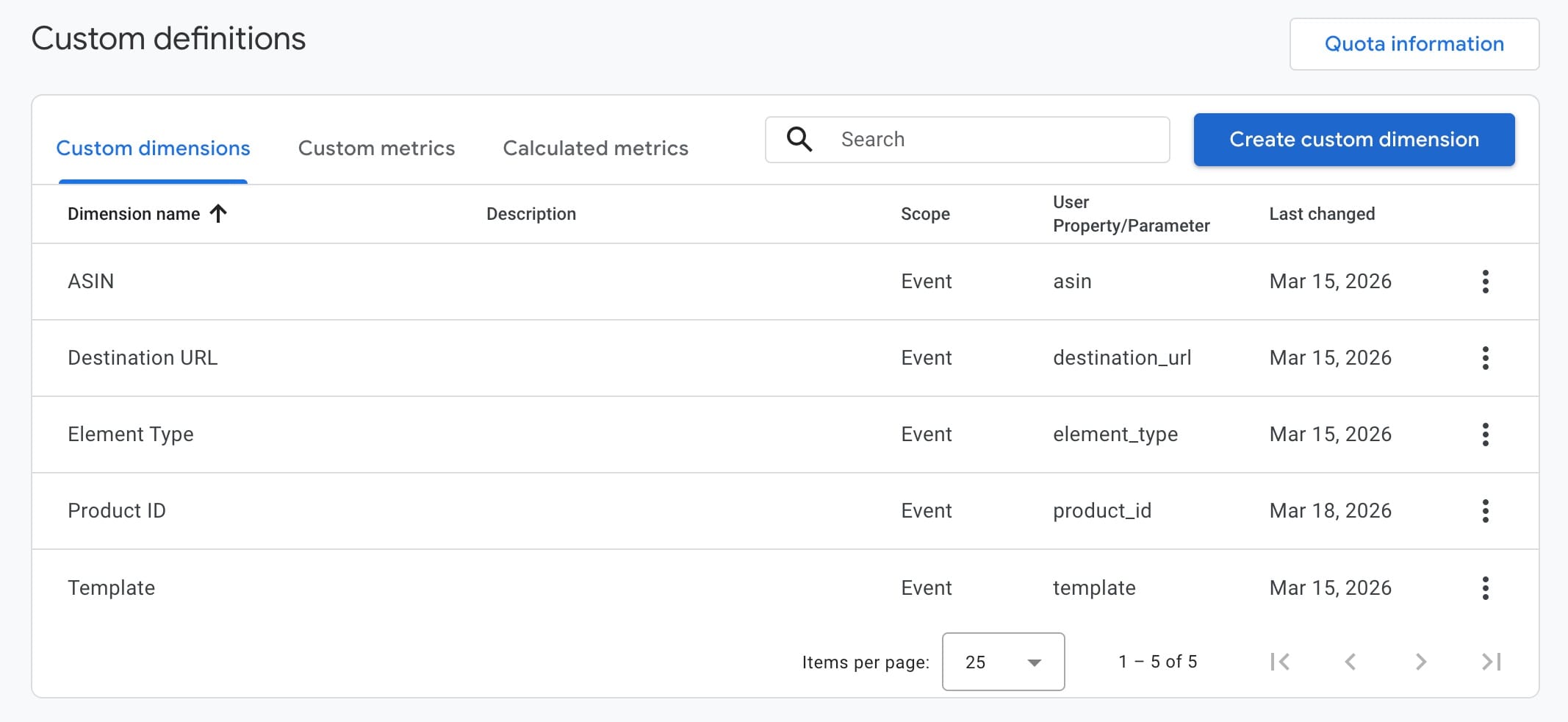
- In your GA4 property, go to Admin → Data display → Custom definitions → Create custom dimension.
- Create the following five dimensions:
| Dimension Name | Event Parameter | Scope | Description |
|---|---|---|---|
| ASIN | asin | Event | Amazon product identifier (empty for non-Amazon products) |
| Product ID | product_id | Event | Internal product ID (for products stored in ASA2's product repository) |
| Template | template | Event | ASA2 template name used to display the product |
| Element Type | element_type | Event | Which part of the template was clicked (button, title, image, etc.) |
| Destination URL | destination_url | Event | The affiliate link URL |
TIP
If you use an existing GA4 property with many custom dimensions, consider prefixing the names (e.g. "ASA2 ASIN", "ASA2 Template") to keep them organized. The event parameter values must remain exactly as shown.
WARNING
Custom dimensions only collect data from the moment they are created, not retroactively. Set them up before you start analyzing data.
Creating Reports in GA4
The event name sent by the plugin is: asa2_affiliate_click
Using Explore Reports (Free Form)
To create detailed click reports:
- Go to Explore → Create new exploration → Free form.
- Add dimensions: Click the + next to Dimensions, search for your custom dimensions (ASIN, Product ID, Template, Element Type, Destination URL), and add them.
- Add metric: Click the + next to Metrics and add Event count.
- Add filter: In the tab settings, add a filter where Event name exactly matches
asa2_affiliate_click.
Here are some useful report configurations:
Top Products Report:
- Rows: ASIN (for Amazon products) or Product ID (for non-Amazon products)
- Values: Event count
Top Templates Report:
- Rows: Template
- Values: Event count
Click Element Distribution:
- Rows: Element Type
- Values: Event count
- Tip: Change the visualization to Donut chart for a visual breakdown of button vs. title vs. image clicks.
Clicks by Page:
- Rows: Page path (this is a built-in GA4 dimension)
- Values: Event count
TIP
Explore reports can take up to 24 hours to show newly collected data. Use Realtime reports to verify your setup immediately.
Using Realtime Reports
Go to Reports → Realtime to see events within seconds of them being sent. This is the fastest way to verify that the GA4 integration is working. Click an affiliate link on your site, then check the Realtime report — the asa2_affiliate_click event should appear immediately.
Testing with DebugView
For the most detailed verification:
- Install the Google Analytics Debugger Chrome extension.
- Enable it (the icon turns green) and reload your site.
- In GA4, go to Admin → DebugView.
- Click an affiliate link on your site — the
asa2_affiliate_clickevent appears in real time, showing all parameters (ASIN, template, element type, destination URL).