
Products Advanced
Categories and Tags
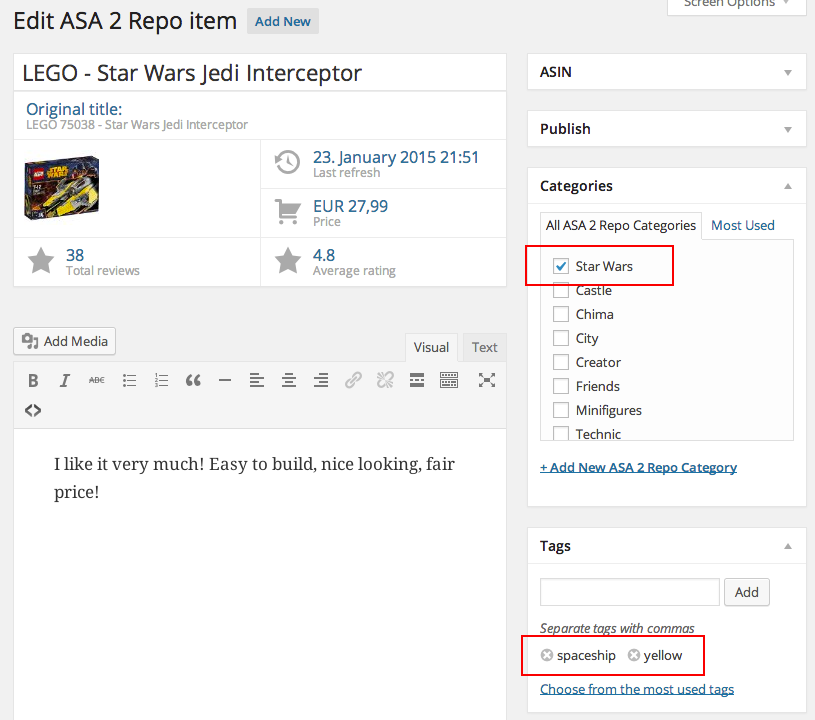
Like you know it from standard WordPress posts, you can use categories and tags with products.
In this example, the Jedi Interceptor is settled in the LEGO category "Star Wars" and I tagged it with "spaceship" and "yellow".
Now you can use ASA2's shortcode Shortcodes Asa2 Smart Collection to dynamically embed products on your pages based on categories and tags.
For example, if you want to embed three products from the category "Star Wars" tagged with "spaceship", you could use the following shortcode:
[asa2_smart_collection cat_slug="starwars" tag="spaceship" limit="3"]You want to show 10 "yellow" tagged items in a random order? Use this shortcode:
[asa2_smart_collection tag="yellow" limit="10" orderby="random"]Shortcode [asa2_smart_collection]
The shortcode Shortcodes Asa2 Smart Collection is one of the most powerful features of ASA2. With it you can create dynamic queries to your Products section with filters for many relevant product properties.
For example, to display only Star Wars spaceships having a better average rating than 4, use this shortcode:
[asa2_smart_collection cat_slug="starwars" tag="spaceship" rating_gt="4"]You can also add a price filter. This example would only display products with a main price lower than 100.
[asa2_smart_collection cat_slug="starwars" tag="spaceship" rating_gt="4" main_price_lt="100"]Check the shortcode page Shortcodes Asa2 Smart Collection for a detailed list of all available options.
Custom Fields
Another powerful feature is the use of Custom Fields with your products.
The easiest way to create these, is with the plugin Advanced Custom Fields (ACF). When you setup a new field group for products in ACF, just set the rule to "Post Type - is equal to - asa2_repo":
INFO
Due to backward compatibility, the post type is still called "asa2_repo" because the Products section was called "Repo" in previous versions.
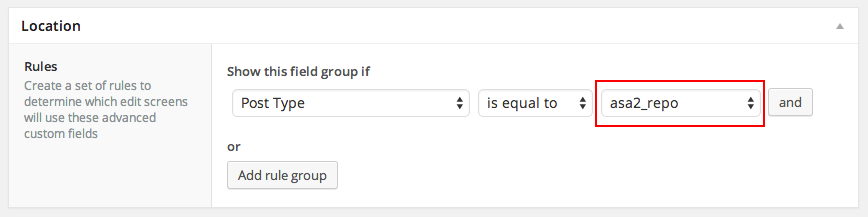
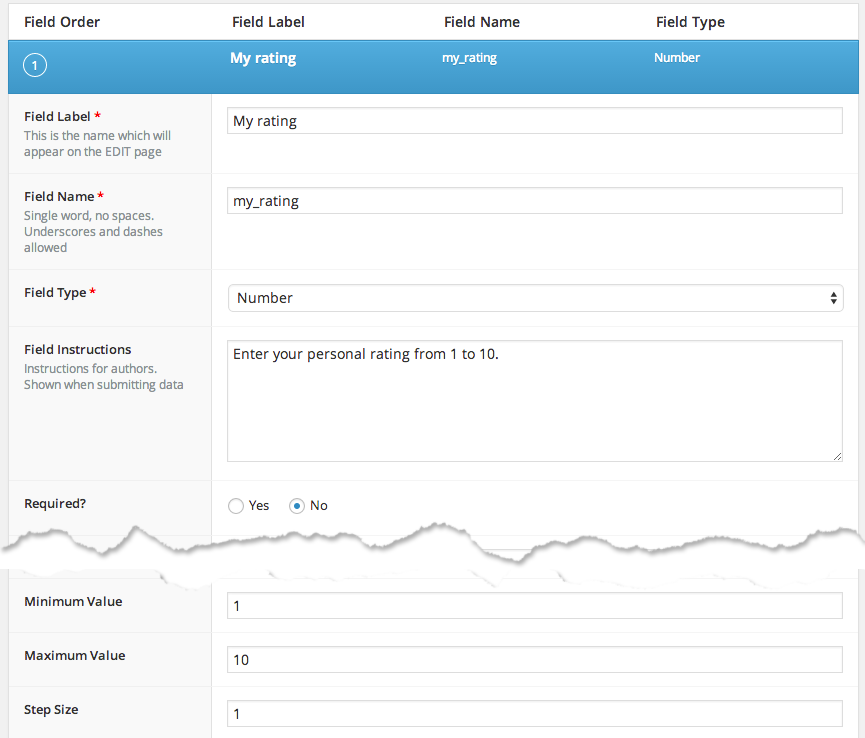
Then I setup the rating field with field type "Number", field name "my_rating", minimum value "1" and maximum value "10", like shown in this screenshot:
The second field "recommendation" I setup with field type "Radio Button" and three choices you can see in this screenshot:

When I enter the edit page of a product item it looks like this:

I can enter a personal rating from 1 to 10 and check the radion button "Yes" if I would recommend the product. This data can then be used in ASA2 templates.
In your templates you can use all custom fields with this special placeholder:
{{ repo_custom_field_* }}INFO
Due to backward compatibility, the placeholders are still called "repo_*", because the Products section was called "Repo" in previous versions.
You just have to replace the "*" with the name of your custom field, like for this example to retrieve the value of custom field "my_rating":
{{ repo_custom_field_my_rating }}INFO
Learn more about all available ASA2 Placeholders.
Now, to display my personal rating only if I have set a value, I use this template code:
{% if repo_custom_field_my_rating is not empty %}<p>My personal rating: {{ repo_custom_field_my_rating }}</p>{% endif %}And to show if I recommend a product:
{% if repo_custom_field_recommendation == "yes" %}<p>I recommend this product!</p>{% endif %}INFO
Learn more about ASA2's Template Syntax.
Of course I could display anything instead of just text, for instance load an image with my custom rating stars or a recommendation badge etc. This is just a demonstration of what is possible with custom fields on products and ASA2's conditional template syntax.
Field Protection (Manual Tracking)
ASA2 includes a sophisticated Field Protection System that tracks manual changes to product values and prevents them from being overwritten during automatic synchronization operations. This feature ensures that your manual edits and content curation work is preserved when products are updated via API calls or CSV imports.
How Field Protection Works
When you manually edit certain product fields, ASA2 can automatically protect those fields from being overwritten during the next sync operation. This allows you to maintain a hybrid workflow where some product data stays automatically synchronized while your manual improvements remain protected.

This example shows a protected Rating field (with slashed link icon) that will not be overwritten during future synchronization operations, while other fields remain automatically synchronized.
Protected Fields
The following product fields support protection:
- Manufacturer - Product manufacturer/brand name
- Rating - Product rating score
- Total Reviews - Number of customer reviews
- Merchant - Seller/merchant information
- Features - Product features and descriptions
Visual Indicators
The product editor provides clear visual feedback about field protection status:
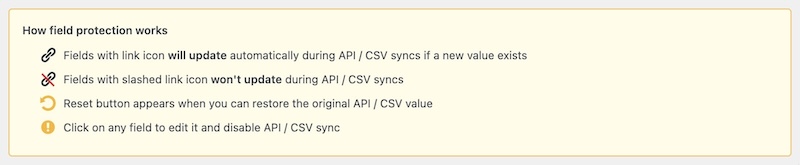
- Link Icon: Field will sync automatically (unprotected)
- Slashed Link Icon: Field is protected and won't sync
- Blue Border: Indicates a protected field
- Gray Background: Shows fields that are currently synced from external sources
How to Protect Fields
There are two ways to protect a field from sync overwrites:
Automatic Protection
Simply click on any synced field (those with a link icon) in the product editor. This automatically protects the field and changes the icon to show it's no longer synced.
Manual Protection
Use the toggle button next to each protectable field to manually enable or disable protection.
Example
If you manually improve a product's rating based on your personal experience:
- Click on the rating field in the product editor
- Enter your custom rating value
- The field automatically becomes protected (shows slashed link icon)
- Future API/CSV syncs will not overwrite your custom rating
- Other unprotected fields continue to sync normally

This screenshot shows a protected Features field with the slashed link icon, indicating that manual changes to this field will be preserved during future synchronization operations.
Restoring Original Values
If you want to restore a field to its original API or CSV value:
- Click the Reset Button next to the protected field
- The field will be restored to the original external value
- Protection is automatically removed
- The field will sync again in future updates
Use Cases
- Content Curation: Manually improve product descriptions while keeping prices synchronized
- Quality Control: Override inaccurate API ratings with your own assessments
- Hybrid Workflows: Mix automatic data sync with manual content improvements
- Data Preservation: Ensure important manual edits aren't lost during bulk sync operations
INFO
This feature was introduced in ASA2 version 1.26.0 as part of "Smarter CSV Sync with Field Locking" to provide granular control over which product fields should be automatically updated during synchronization operations.