

Dashboard
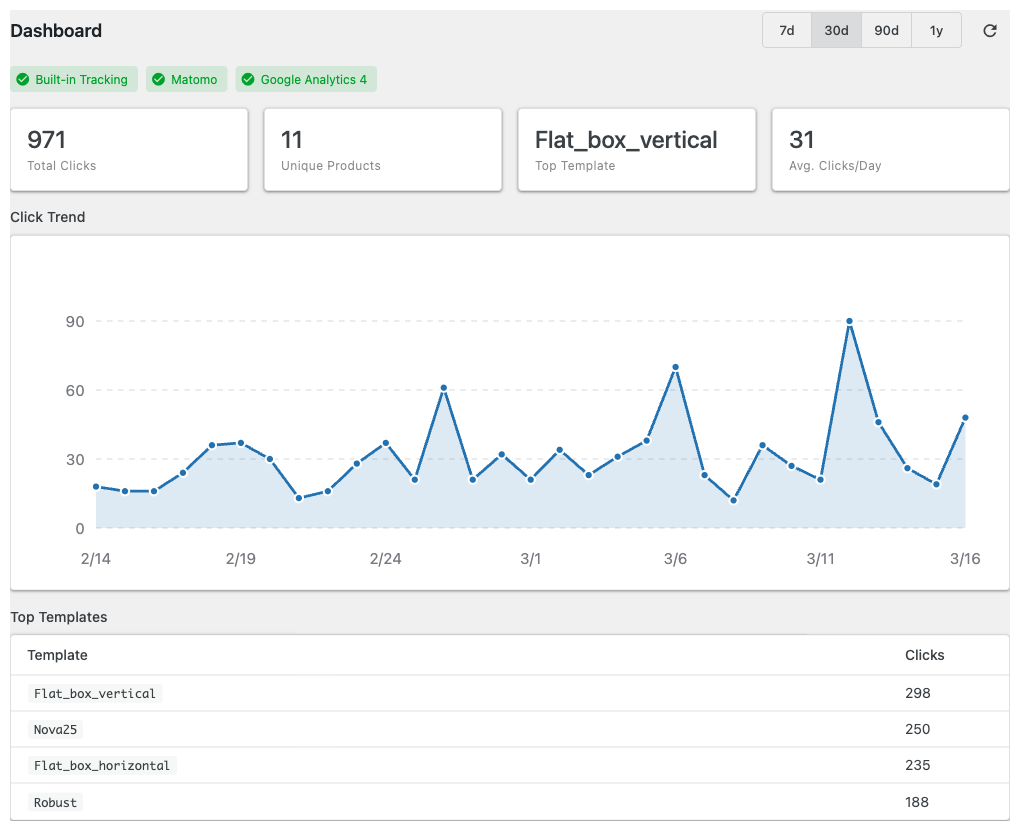
After activation, you will find a new ASA2 → Tracking page in your WordPress admin. The dashboard shows an overview of your affiliate link click data.
Provider Status
At the top of the dashboard, badges show the status of each tracking provider (active, configured but disabled, or not configured). Click a badge to jump directly to that provider's configuration on the Providers page.
Overview Stats
The dashboard displays four key metrics for the selected date range:
- Total Clicks — The total number of affiliate link clicks, with a percentage change compared to the previous period.
- Unique Products — How many distinct products were clicked (identified by ASIN or internal Product ID).
- Top Template — The template that generated the most clicks.
- Avg. Clicks/Day — The average number of clicks per day in the selected period.
Below the stats, you will see:
- Click Trend — A line chart showing daily click counts over the selected date range. Hover over data points to see exact values.
- Top Templates — A table of your most-clicked templates.
Date Range
Use the date range selector in the top-right corner to change the time period. Presets are available for 7 days, 30 days, 90 days, and 1 year. Use the refresh button next to the date selector to reload data.
Data Aggregation
Click data is aggregated daily. Today's clicks will appear in the dashboard after the next aggregation runs overnight via WP-Cron. If you want to see today's data immediately, you can trigger aggregation manually in Settings → Maintenance → Run Aggregation.
When there are pending clicks that have not yet been aggregated, the dashboard shows an info banner with the count.