

Products

Overview
The Products section (formerly known as "Repo") is the place where you can store and organize your affiliate products in ASA2. Starting with the selection of the shop, you can enter the various product properties here or have them automatically synchronized using an affiliate API, such as the Amazon PA API.
Technically, the section is based on WordPress's Custom Post Types, so the products data is stored in the WordPress database like any other post data. This allows you to organize products within categories and tags, and to store your own product reviews as post text. Using this information, ASA2 makes it very easy to create dynamic product lists.
Unique Features
- Organize your products in form of WordPress custom posts
- Build dynamic queries based on the product properties with Smart Collections (see Shortcodes Asa2 Smart Collection)
- Automatically refresh and preload the product data via affiliate APIs such as the Amazon PA API and ASA2's cronjobs (see Product Update Cronjob)
- Get notified via email about the properties of your products like availability (see Notifications)
- Export and import products as CSV for site migrations or backups (see Export / Import below)
Create Products

How to create products with ASA2 differs depending on whether they are to be created via Amazon PA API or for another store.
- Create an Amazon Product
- Create an Amazon Product without API
- Create Product manually
- Create Product automatically
Further information
Screencast
PA API flowchart
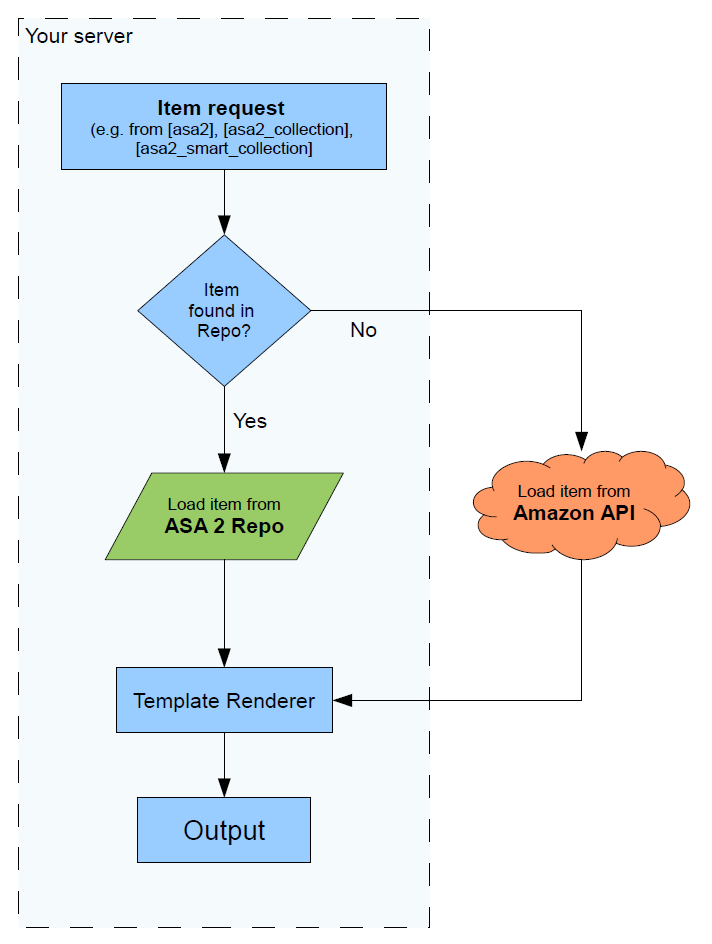
Whenever ASA2 tries to load a product, it checks if it exists in the Products section (formerly known as "Repo"). If it does, it loads the product data from the Products section making a request to the Amazon API unnecessary.

Usage
By default, ASA2 is configured to put an Amazon PA API product into the Products section automatically when it gets used for the first time, e.g. when you save a post containing ASA2 Shortcodes or a collection gets loaded for the first time. This behaviour can be adjusted to your wishes in the Products Options.
But you can also fill the Products section in advance by manually adding new products or importing a bunch through the URL importer.
Read more about Product Usage
Refreshing the products
If a product is outdated, it will be refreshed automatically, at worst when a user requests a page.
Using the cronjob Product Update Cronjob, all products can be refreshed without user action on your server, e.g. at night. Together with the configurable lifetime of the products, the Products section offers you all the flexibility you need, to prevent realtime Amazon API calls on user page access.
Therefore the Products section greatly improves page load speed even if you do not use any of ASA2's Caching options.
Read more about Product Refresh.
Advanced
As the Products section is based on Custom Post Types, you benefit from all the familiar WordPress features. You can use categories and tags on your products and load them dynamically with the shortcode Shortcodes Asa2 Smart Collection. You can insert a text or excerpt on a product and use it with the template placeholders {{ repo_content }} and {{ repo_excerpt }}. For more details about the available products placeholders, check placeholder section Products Placeholders.
Read more in Products Advanced.
Learn more about Products section in the subchapters:
Export / Import
The Export / Import page (Products > Export / Import) lets you export and import products from the Product Repository as CSV files. This is useful for site migrations, backups, or transferring products between WordPress installations without direct database access.
Exporting Products
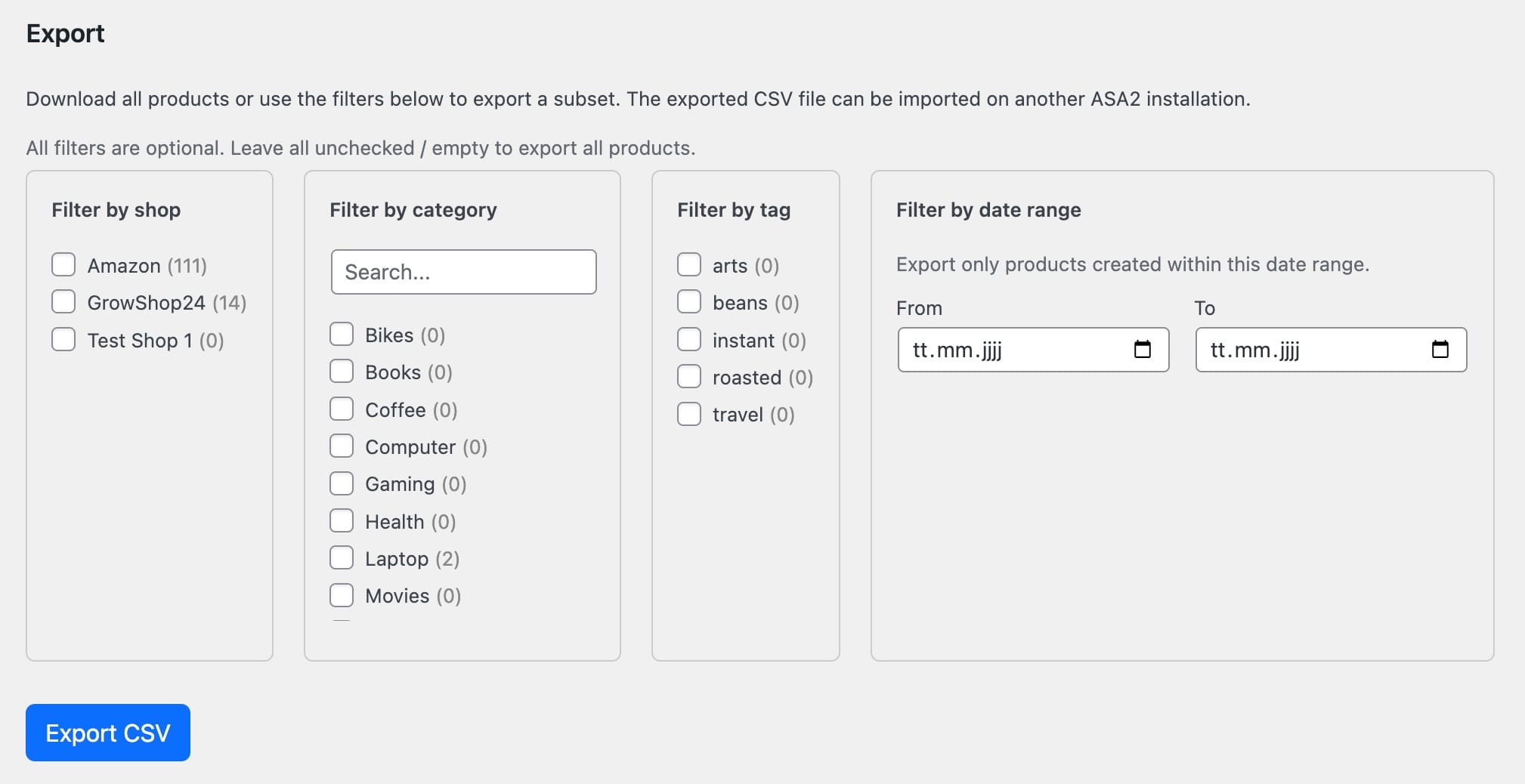
The export section downloads all products from the repository as a CSV file. Four optional filters let you narrow down the export to exactly the products you need.
Export Filters
All filters are optional and can be combined. When multiple filters are active, only products matching all selected criteria are exported. Leave all filters unchecked to export all products.
| Filter | Description |
|---|---|
| Shop | Select specific shops to export only their products |
| Category | Select specific product categories |
| Tag | Select specific product tags |
| Date range | Export only products created within a specific time period (from/to) |
Filter lists with more than 10 entries include a search field at the top for quick lookup.
How to Export
- Navigate to Products > Export / Import
- Optionally use the filters to narrow down the export (shop, category, tag, date range)
- Click Export CSV
- The browser downloads a CSV file named
asa2-products-export-YYYY-MM-DD-HHmmss.csv
CSV Format
The exported CSV uses semicolons (;) as delimiters and UTF-8 encoding with BOM for Excel compatibility. It contains the following columns:
| Column | Description |
|---|---|
title | Product title |
description | Product description (post content) |
excerpt | Product excerpt |
asin | Amazon ASIN (if applicable) |
country_code | Amazon country store code (e.g. US, DE) |
custom_product | Whether this is a custom product (1/0) |
custom_affiliate_url | Custom affiliate URL |
custom_price | Custom price |
auto_price_amount | Automatic price from API |
offer_price_amount | Offer/sale price |
custom_rating | Custom rating value |
custom_reviews_total | Custom total reviews count |
manufacturer | Manufacturer name |
merchant | Merchant/seller name |
item_number | Item number / EAN / GTIN |
features | Product features |
small_image_url | Small product image URL |
medium_image_url | Medium product image URL |
large_image_url | Large product image URL |
not_available | Whether product is marked as not available (1/0) |
categories | Comma-separated category names |
tags | Comma-separated tag names |
shop | Shop name |
INFO
Shops, categories, and tags are exported by name (not by ID), so the CSV is portable across different ASA2 installations.
Importing Products
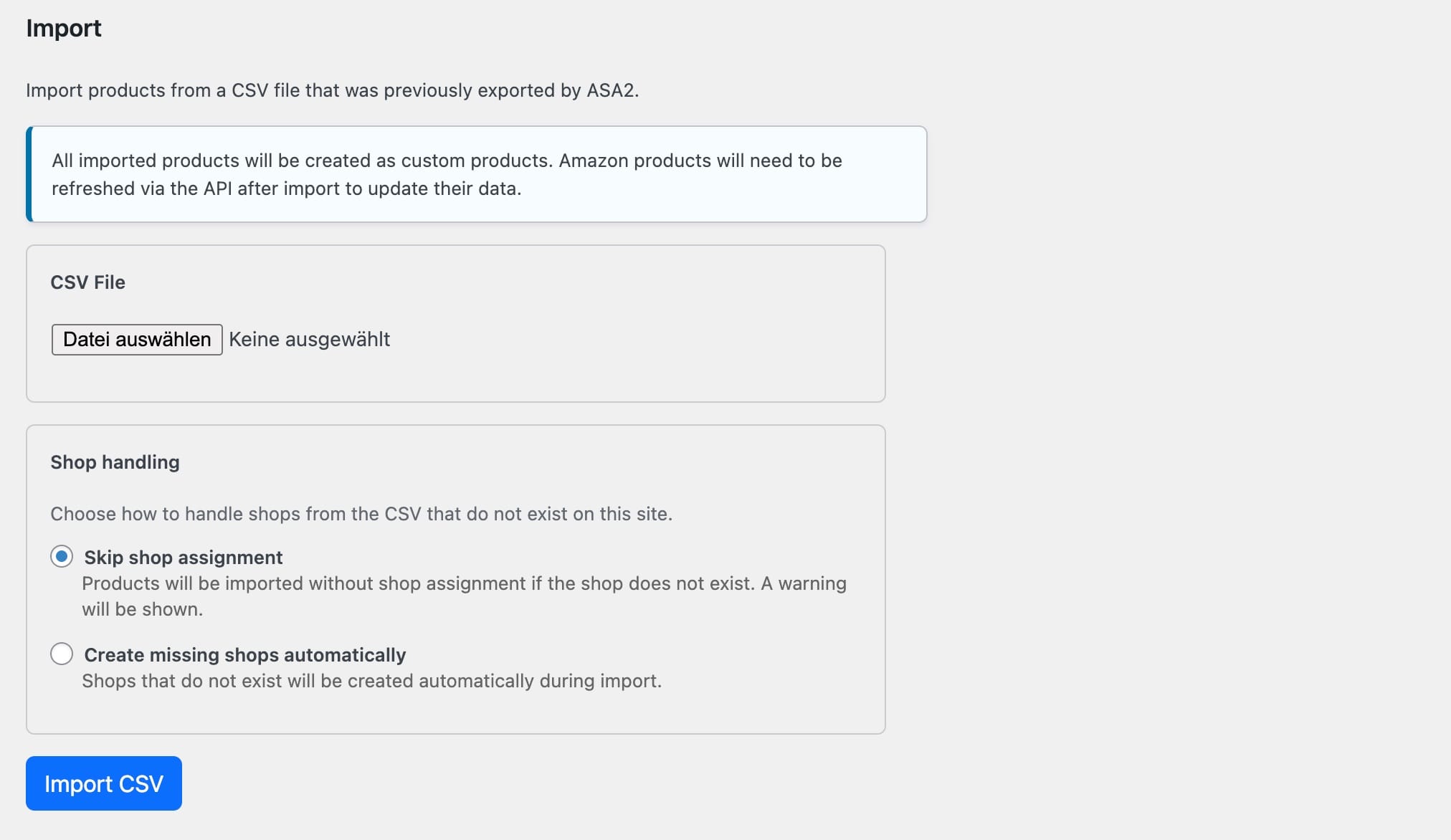
The import section lets you upload a previously exported CSV file and create the products on the current site.
How to Import
- Navigate to Products > Export / Import
- In the Import section, click Choose File and select a CSV file
- Select the desired Shop handling mode (see below)
- Click Import CSV
- After completion, a summary message shows how many products were imported and how many were skipped
Shop Handling
When importing products, you can choose how to handle shops from the CSV that do not exist on the target site:
| Mode | Behavior |
|---|---|
| Skip shop assignment (default) | Products are imported without a shop if it does not exist. A warning lists the affected products. |
| Create missing shops automatically | Missing shops are created as full shops during import. Products are assigned to the newly created shops. |
INFO
Categories and tags that do not exist on the target site are always created automatically.
Import Results
After import, ASA2 displays:
- Success message — Number of products imported successfully
- Skip count — Number of products that were skipped (e.g. due to empty titles or column mismatches)
- Warnings — Detailed list of issues per line, such as missing shops or products that could not be created
WARNING
All imported products are created as custom products, regardless of their original type. Amazon products will need to be refreshed via the API after import to restore their API connection and update their data.
Migration Workflow
A typical migration workflow looks like this:
- Source site: Go to Products > Export / Import
- Export: Select the shops to export (or export all), click Export CSV
- Target site: Install and activate ASA2
- Set up shops: Create the same shops on the target site, or use "Create missing shops automatically" during import
- Import: Upload the CSV file on the target site
- Refresh Amazon products: Use the Product Update Cronjob or manual refresh to update Amazon product data via the API
TIP
If you export only custom products (non-Amazon), no API refresh is needed after import. The products are immediately usable.